Setup Assistant
Connect the AI services UVI needs, in a few minutes
The Setup assistant connects the AI services UVI runs on: speech recognition to hear you, a language model to think, and speech synthesis to talk back. UVI supports 21 providers across the three modules, local ones included: Ollama, LM Studio or your own server.
It opens from the speech-bubble invitation on the Home page (shown while nothing is configured yet), or from the Setup assistant button on the Modules page. You can re-run it at any time. The assistant sets up the current profile.
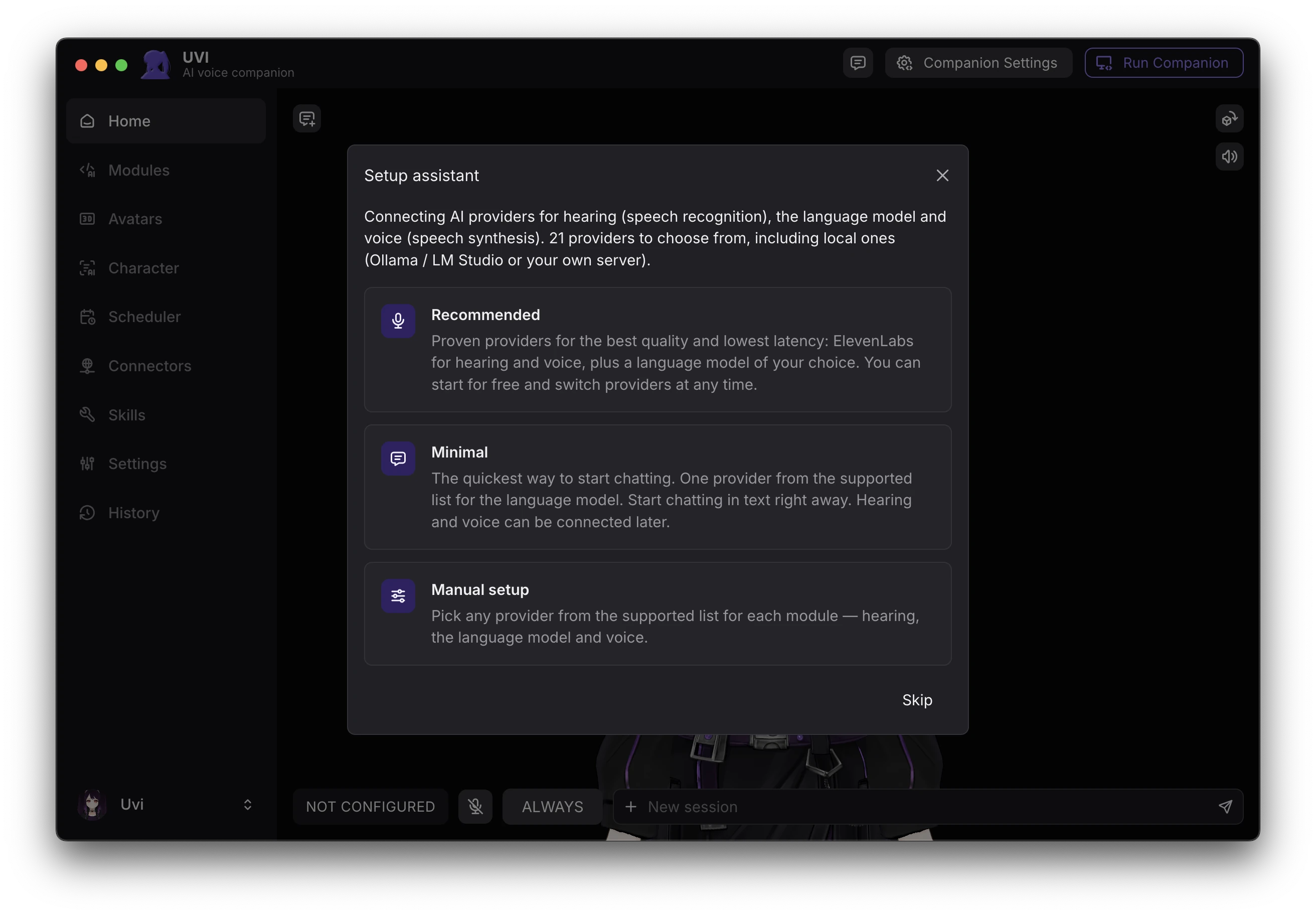
Recommended
The full experience: you speak, you hear the answer, in about 5 minutes. A switch on the first step picks how you connect: Separate keys (the default) or One OpenRouter key.
Separate keys
Two API keys. ElevenLabs handles hearing and voice, and you choose the language model from a list of proven low-latency providers:
| Module | Provider | Model |
|---|---|---|
| Speech Recognition | ElevenLabs | scribe_v2 |
| Speech Synthesis | ElevenLabs | eleven_flash_v2_5 |
| Language Model | your choice of three | set by the assistant |
The language model options:
| Provider | Model | Access |
|---|---|---|
| OpenRouter | google/gemini-3.1-flash-lite | needs a topped-up balance |
| Google Gemini | gemini-3.5-flash-lite | free tier |
| Alibaba Cloud / Qwen Cloud | qwen3.6-flash | free quota for new accounts, 90 days |
The steps:
- ElevenLabs — one key powers both hearing and voice. Create it at elevenlabs.io; a free plan is available to get started. The assistant verifies the key live.
- Voice — pick the voice the companion speaks with. The Suggested group has curated voices (Jessica, Laura, Bella, Lily), or choose any voice from your ElevenLabs library.
- Language Model — pick a Provider from the list, follow the link to create a key, and paste it. This key is verified live too.
- Finish — review and press Apply setup.
When you create the ElevenLabs key, turn off the Restrict Key toggle. A restricted key has no access to speech recognition and synthesis, and the assistant won't accept it.
The assistant adds its own provider entries and makes them active: "ElevenLabs (Setup)" for hearing and voice, and one for the language model named after the provider, such as "Google Gemini (Setup)". Providers you added yourself stay untouched. Re-running the assistant only updates these entries, even if you pick a different language model provider.
One OpenRouter key
One API key for all three modules: OpenRouter runs ElevenLabs models for hearing and voice along with the language model. You don't need an ElevenLabs account, and OpenRouter needs a topped-up balance.
| Module | Model |
|---|---|
| Speech Recognition | elevenlabs/scribe-v2 |
| Speech Synthesis | elevenlabs/eleven-flash-v2.5 |
| Language Model | google/gemini-3.1-flash-lite |
The steps:
- OpenRouter — create a key at openrouter.ai and paste it. The assistant verifies the key live.
- Voice — pick one of the Suggested voices (Jessica, Laura, Bella, Lily) or paste the
voice_idof an ElevenLabs voice. - Finish — review and press Apply setup.
All three entries are named "OpenRouter (Setup)". Re-running the assistant with the other option updates the same entries instead of adding new ones.
Minimal
A plain text chat: you type, the companion answers in text. One API key from any supported language-model provider is enough; you can add hearing and voice later. See Text Mode for what this mode is like day to day.
Three steps:
- LLM — pick how to connect (all 20 language-model providers are available here) and paste the key.
- Model — type or pick the model. The capability switches sit here too: Supports vision is on by default, Supports tools keeps skills, connectors and file actions working.
- Finish — review, decide whether to show subtitles over the avatar, and press Apply setup.
The assistant adds a single entry named "LLM (Setup)" and makes it active.
Manual setup
A checklist of the three modules with live status and Configure buttons that take you to the right module page. Use it when you want to pick providers yourself:
- STT — faster recognition means the companion starts answering sooner.
- LLM — prefer fast multimodal models with tool support: skills, connectors and other agent features rely on tools.
- TTS — providers with streaming synthesis give the shortest delay before you hear the reply.
See Providers for the full catalog with per-provider instructions.
Skip
Closes the assistant. You can configure everything later from the Modules page.