Home
The avatar, the ControlBar and avatar position editing
The Home page shows the avatar full-screen with the ControlBar at the bottom.
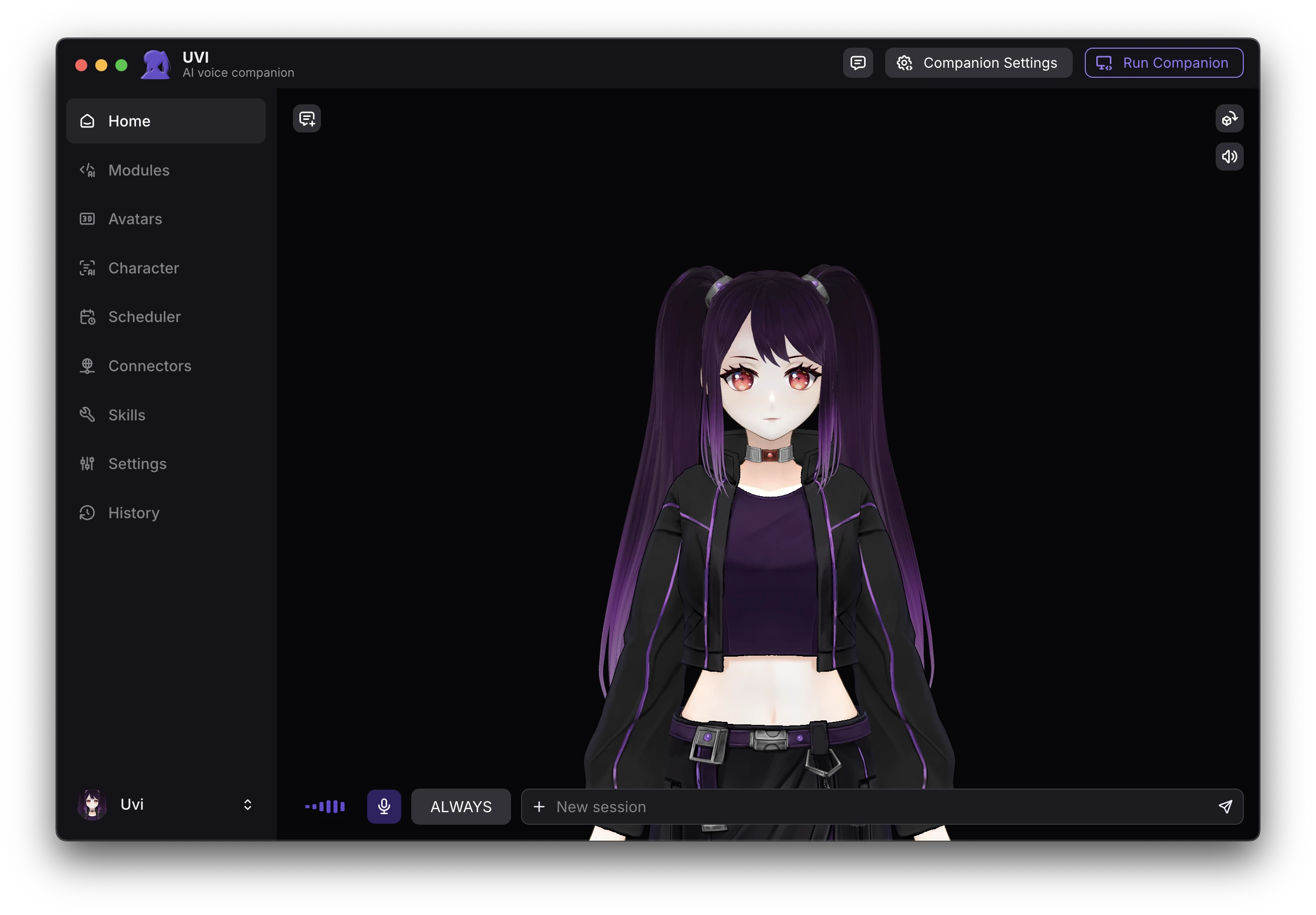
ControlBar
Left to right:
- Status indicator — an animated equalizer while the companion is listening, thinking or speaking. Each state has its own rhythm. Otherwise a text badge takes its place:
STANDBY— microphone offNOT CONFIGURED— no language model is set up; click the badge to open the Setup assistantTURNED OFF— the language model module is switched off in Modules; click the badge for a prompt to turn it back onMIC ERROR— microphone problemEDITING…— avatar position edit mode
- Stop — appears while the companion is answering; cuts off both the reply and the speech.
- Microphone button — turns voice input on/off. If speech recognition isn't set up (or is switched off), a dialog says so instead of failing silently.
- Mode button
PTT/ALWAYS— tap to switch between push-to-talk and continuous listening. See Voice Mode. - Hold (Space) — push-to-talk button (PTT mode only). Hold the on-screen button or the Space key while speaking.
- Chat input — type instead of talking. The Attach files button (the plus on the left) adds files to your message; see History.
Voice toggle
The speaker icon in the top-right corner mutes the voice: with voice off, replies come as text only. The setting applies on Home, in the companion window and in every chat, and it survives a restart. Each profile has its own. The same toggle sits in the chat header and in the tray menu (Mute voice).
Turning the voice back on requires a working speech synthesis provider; if there is none, a dialog explains what's missing. See Text Mode.
New session
The New session button (top-left) starts a fresh conversation; it's disabled while the companion is answering. Previous conversations stay in History.
Subtitles
If subtitles are on, replies appear over the avatar at the bottom of the screen: handy when the voice is muted. They're off by default; turn them on in Settings → Appearance, or at the end of the Minimal path of the Setup Assistant.
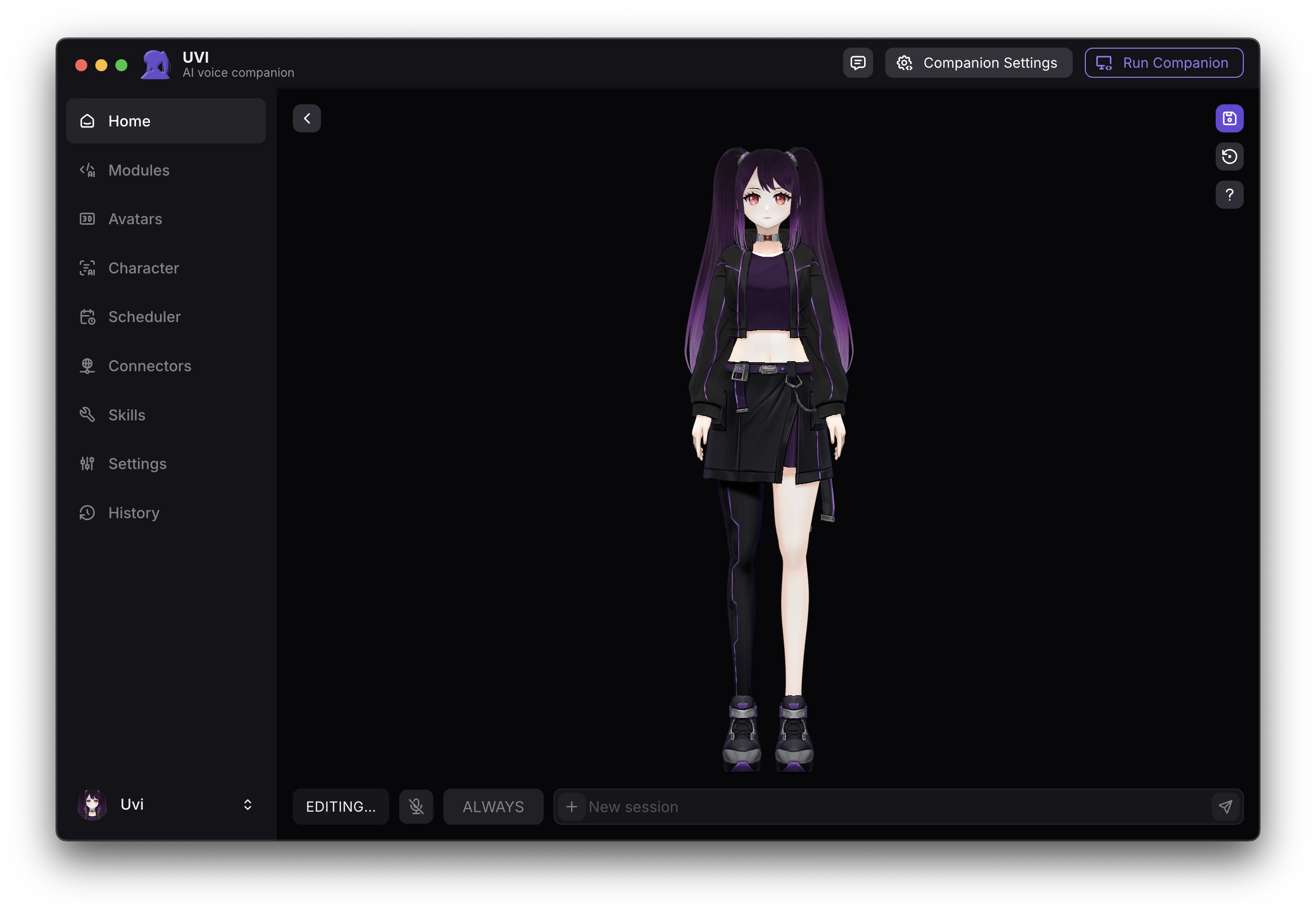
Editing avatar position
The buttons in the top-right corner let you reframe the avatar:
- Edit position and scale — enter the edit mode:
- Rotate — drag with the left mouse button (sideways turns, up/down tilts)
- Move up or down — drag with the right mouse button, or Shift + left button
- Zoom — mouse wheel / trackpad
- Save position and scale — save and exit.
- Reset to default position — restore default framing (stays in the mode).
- Exit without saving (top-left arrow) — roll everything back.
The conversation is paused while you edit, and the ControlBar is locked. The framing is saved for the profile, not for the avatar, so it survives avatar switches.