Profiles
Several characters, each with its own memory, history and settings
A profile is a character with its own Personality, About Me and Memory, its own chat history, AI providers, voice and settings. Besides the built-in Uvi, you can create characters of your own and switch between them.
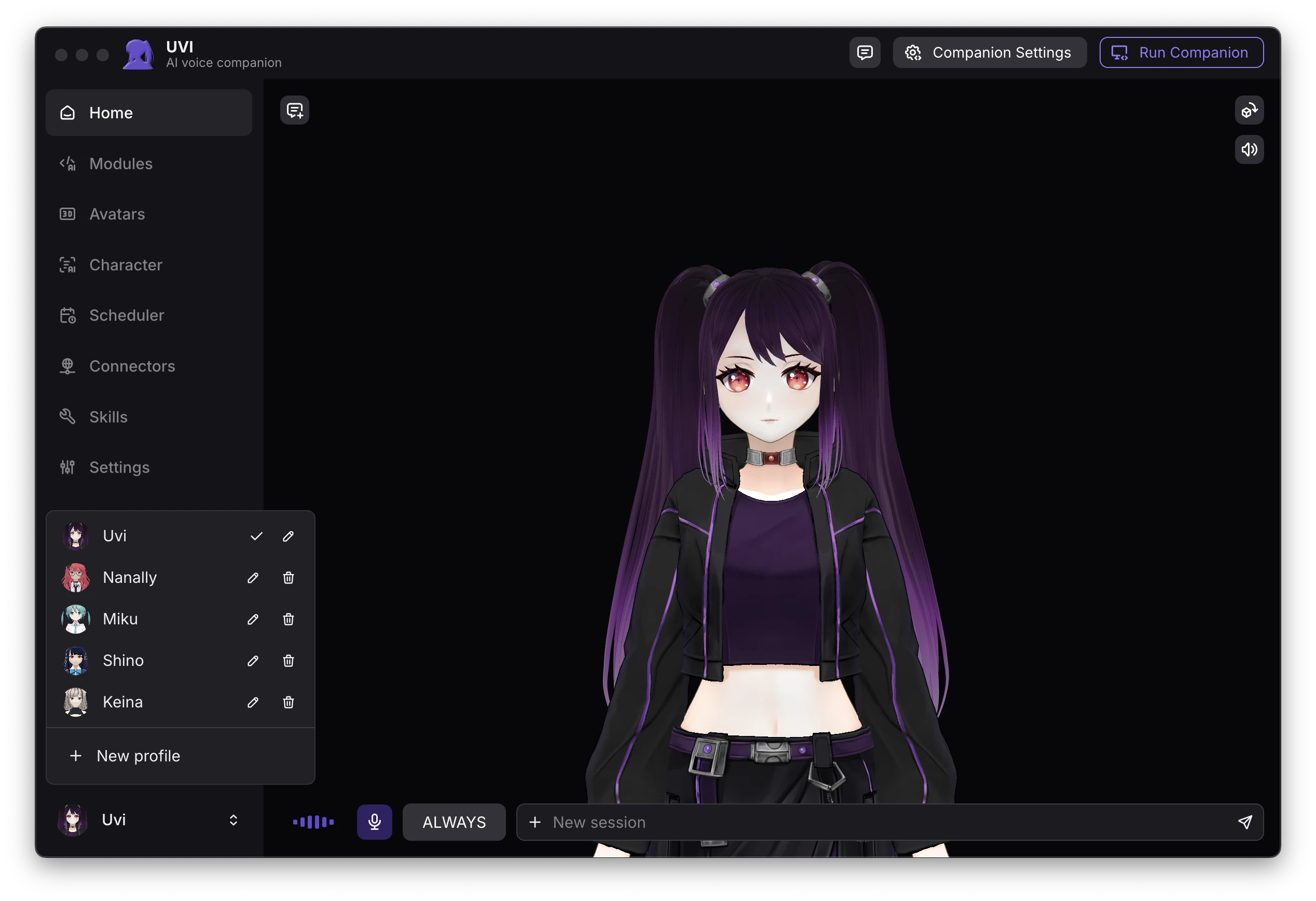
The switcher sits at the bottom of the left sidebar and shows the active profile's avatar and name. Click it to open the list of profiles.
Switching
Pick a profile in the list — the app switches to it right away. If the companion is answering or you're changing the avatar position on Home, you can switch once that's finished.
New profile
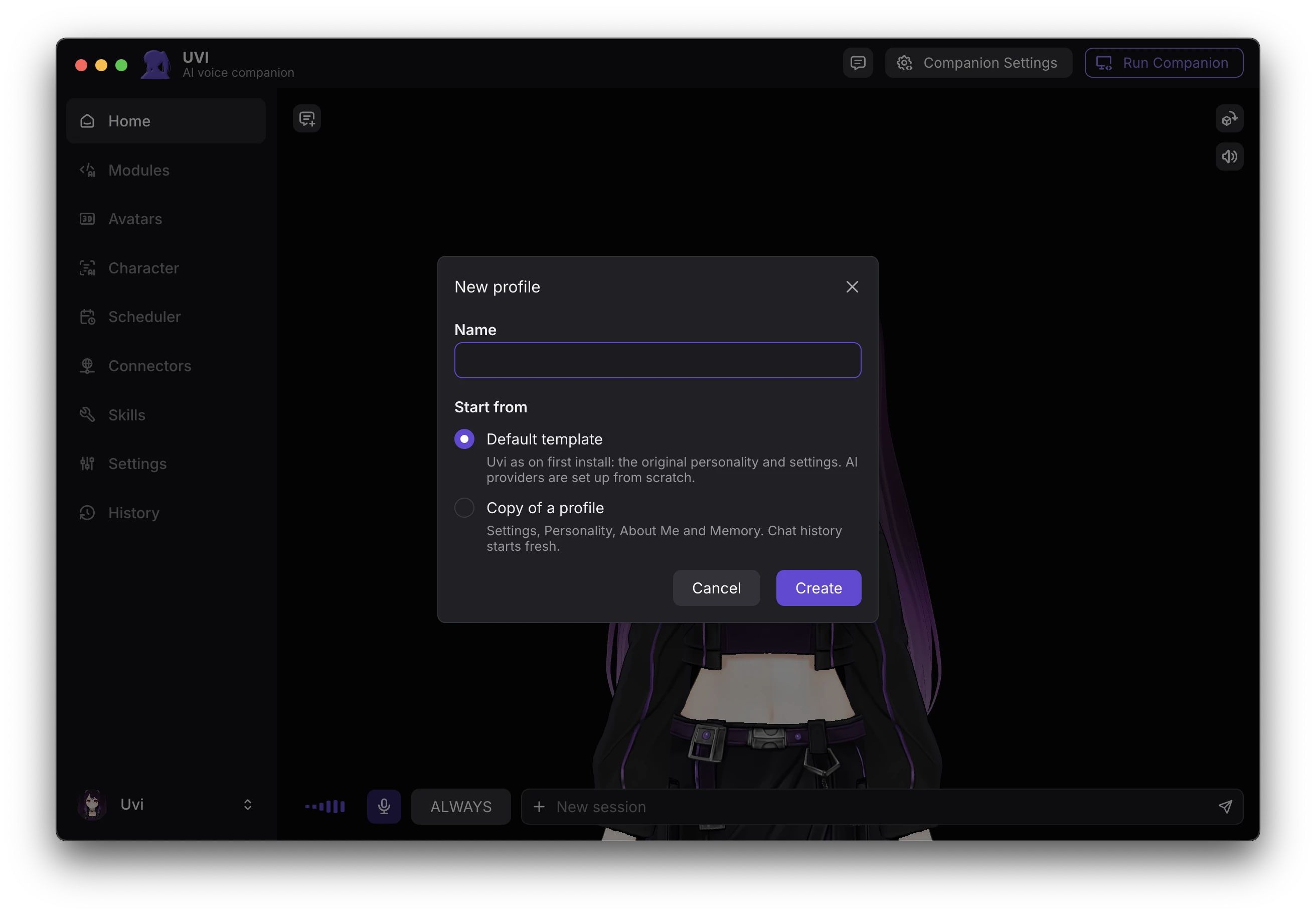
New profile at the bottom of the list opens a form with a Name and a choice under Start from:
- Default template — Uvi as on first install, with the original personality and settings. AI providers are set up from scratch, so Home shows the invitation to open the Setup assistant.
- Copy of a profile — the profile you pick in Profile to copy passes on its settings (provider keys included), Personality, About Me and Memory. Chat history starts fresh.
A name can be up to 40 characters, and two profiles can't share one. The new profile opens as soon as you press Create.
Renaming and deleting
Each row in the list has a rename button and a delete button. The active profile can't be deleted. A deleted profile goes to the Trash, together with its personality, memory and chat history.
What belongs to a profile
| Area | Each profile has its own | Shared by all profiles |
|---|---|---|
| Character | Personality, About Me, Memory | — |
| History | Chat sessions | — |
| Modules | Providers and keys in all four modules, Web Search included | — |
| Avatars | The selected avatar, its position and scale on Home | The avatar library |
| Companion Mode | Companion Settings, except Shortcut | Shortcut |
| Voice Mode | The voice toggle; voice interruption, wake word and speaker recognition on the Voice tab | Microphone mode PTT / ALWAYS, saved voices |
| Settings | Security, Tools, subtitles on the Appearance tab | Theme, interface language, Privacy, API |
| Skills | Which skills are enabled | The skill library |
| Connectors | Which connectors are enabled | Connector settings and sign-ins |
| Scheduler | — | All tasks |
How shared parts behave
- A connector is set up once and switched on separately for each profile. Signing in or out of an account (Gmail, Notion and others) applies to every profile, so each connector has one account for all of them.
- A skill or connector you add is enabled only in the profile you added it in.
- Telegram, Discord and Twitch reply on behalf of the active profile. While the connector is off in that profile, incoming messages are skipped. Once it's on, only new messages are handled.
- Scheduler tasks run in the active profile.
- API requests go to the active profile.
- To delete an avatar selected in another profile, switch to that profile and choose a different avatar. A skill or a custom connector has to be disabled in other profiles before you delete it. The delete window lists those profiles and has a Disable in these profiles button.