Installation
Install UVI and run it for the first time
Download
UVI ships as a desktop app for all major platforms:
| Platform | Package |
|---|---|
| macOS with Apple silicon (M series) | uvi-<version>-arm64.dmg disk image |
| macOS with an Intel processor | uvi-<version>-x64.dmg disk image |
| Windows | uvi-<version>-setup.exe installer |
| Linux | uvi_<version>_amd64.deb package |
| Linux | uvi-<version>.AppImage file |
macOS
Open the .dmg and drag UVI into Applications. On first use, macOS asks for access to the microphone, which voice input needs.
Windows
Run the installer. Windows SmartScreen may show a warning: choose "More info" → "Run anyway".
Linux
Install the deb package, or use the AppImage (make it executable and run).
First launch
On first launch, the Home page opens with the built-in avatar and a speech-bubble invitation to run a quick setup. Until speech recognition, a language model and speech synthesis are connected, the app can't hear or speak.
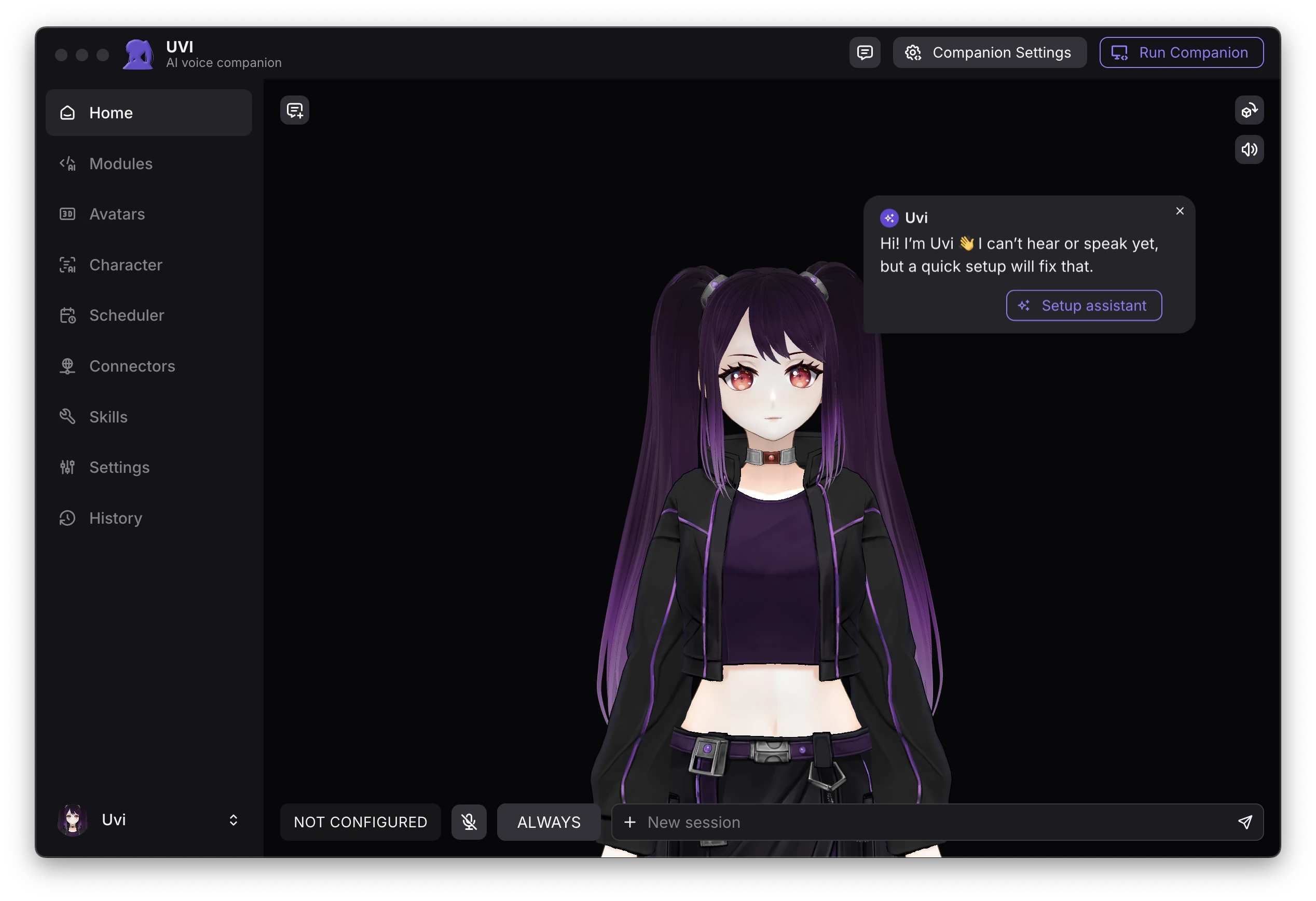
Continue with the Setup Assistant.
Running in the background
Closing the window with ✕ (or Cmd+W on macOS) hides the app instead of quitting it: conversations, the microphone, companion mode and messenger connectors keep working in the background. To bring it back, use the tray icon or right-click the avatar in companion mode. Both menus have these items:
- Show UVI — reopen the window
- Open Chat — open the chat window without unhiding the app
- Companion click-through — let clicks pass through the companion window to what's underneath
- Microphone — turn it on or off
- Mute voice — silence spoken replies; replies keep coming in text
- Push to talk / Always listening — switch the listening mode
- About UVI — the version you are running
- Quit — quit the app instead of hiding it (or Cmd+Q on macOS)
Push-to-talk with the Space key only works while the app window is focused. For background use, switch to Always listening or use the companion hotkey.
Updating
The app updates itself in the background. When an update is ready, an Update ready panel appears at the bottom of the left sidebar with a Restart button, and the tray menu gets a Restart to apply update item. The ✕ hides the panel for this session.
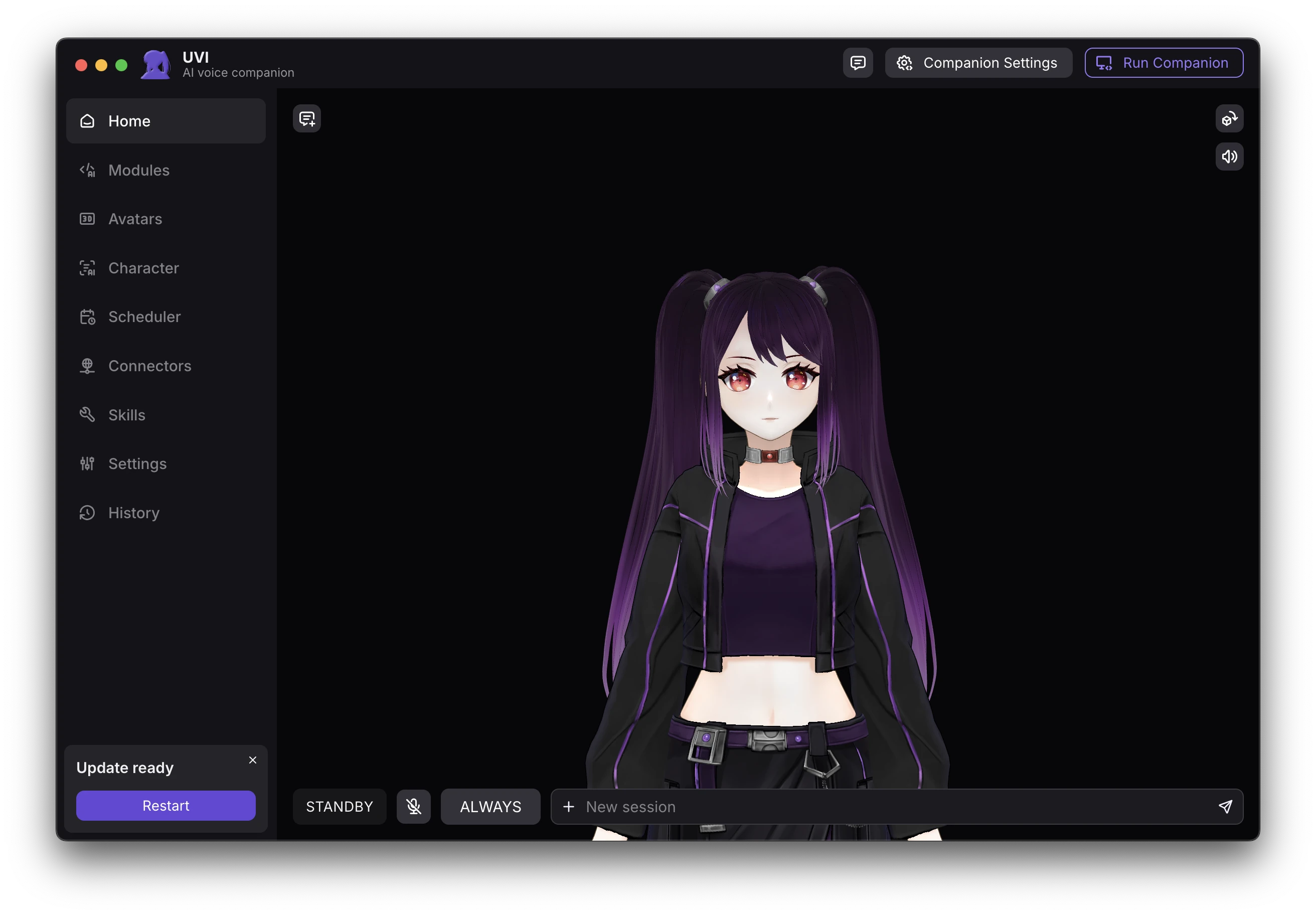
Restart applies the update immediately. Otherwise it installs the next time you quit the app.
On Linux the deb package downloads updates and shows the same panel and tray item, but installs only when you press Restart and confirm with your system password. If you cancel the prompt or quit without pressing the button, nothing is installed: the panel stays and comes back on the next launch, without a new download. The AppImage updates like the macOS and Windows versions: no password is needed, and if you don't press the button, the update installs the next time you quit.
If you are offline, nothing happens and no error appears. The app checks again later.
Where your data lives
The app stores all settings, sessions, avatars and skills in a local workspace folder:
- macOS:
~/Library/Application Support/Uvi/workspace - Windows:
%APPDATA%\Uvi\workspace - Linux:
~/.config/Uvi/workspace