Companion Mode
The avatar in a transparent window above your desktop
Companion mode puts the avatar in a separate window: transparent, borderless, always on top, draggable and, if you turn it on, resizable, so it can sit above your desktop while you work.
The controls live in the app header on every page: Run Companion / Stop Companion and the Companion Settings button.
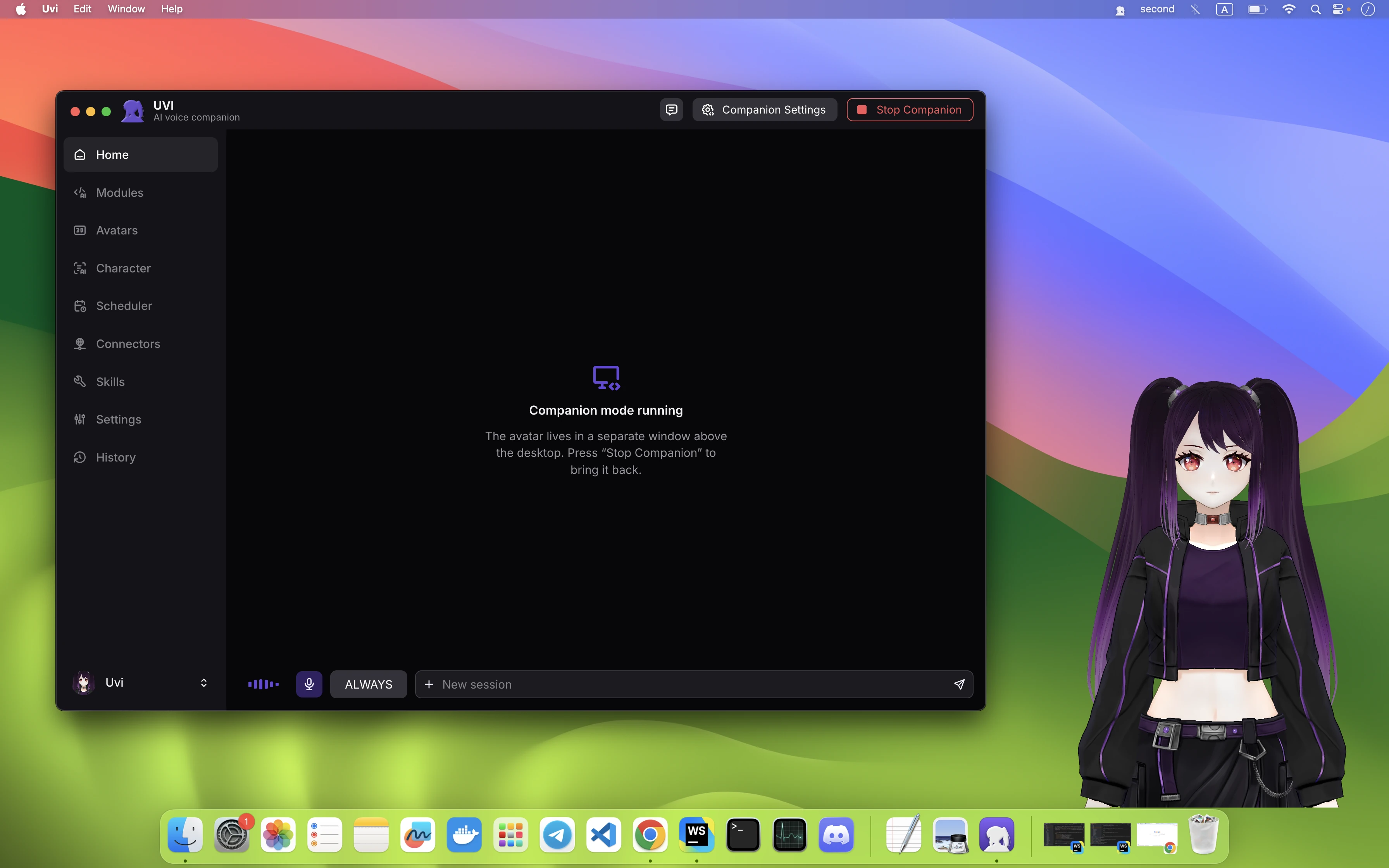
While the companion is running, the Home page shows a "Companion mode running" panel, but the ControlBar keeps working and still controls the companion.
Companion Settings
- Window size — Silhouette (the window hugs the avatar) or Area (the whole view, as on Home). Applies the next time the companion starts.
- Resizable window — off by default. Drag an edge or corner of the companion window to resize it: the proportions stay fixed, and the size is remembered. Reset size below the switch brings back the size from Home.
- Show window corners — off by default. Marks the corners of the transparent window, so you can see where it ends and where to grab it.
- Click-through — clicks pass through the window to what's underneath. While on, the window can't be moved or resized: position it first, then turn this on. The same switch is in the tray menu as Companion click-through: the quickest way to turn it off.
- Shortcut — a global hotkey for one-shot conversations, Control+Shift+J by default. Press it in any app: the companion listens to one phrase and replies. Change it to any combination you like: Change shortcut → press the keys → Save shortcut. Works while the companion is running.
Everything except Window size applies right away, without restarting the companion. Each profile keeps its own Companion Settings, except Shortcut, which is shared.
Subtitles
If subtitles are on, replies also appear at the bottom of the companion window, so you can follow along with the voice muted, without opening the app. In Silhouette, the window is narrow, so subtitles take up more of its height. Turn them on and adjust size, color and auto-hide in Settings → Appearance; see Text Mode.
Good to know
Silhouette needs one launch from the Home page after you switch avatars: the engine has to render the avatar live to measure its outline. After that, Run Companion works from any page. Area works from anywhere right away.
- On macOS and Windows, the companion stays on top even when a video or another app goes full screen. On macOS, it shows on every desktop.
- The companion window picks up an avatar change the next time it opens.
- Switching profiles closes the companion window.
- If the shortcut can't be registered, it's already taken by the system or another app: pick a different combination.
- Right-click the companion window for a menu with the same items as the tray menu, plus Close companion and the window options Resizable window, Reset size and Show window corners. With Click-through on, the menu doesn't open: turn it off from the tray menu.